
You have one photo of your dog or cat, and one idea: a giant pet AI video where your animal towers over buildings and strides down an AI-generated city street. That single photo is all the input Make It Giant AI asks for — no prompt, no model to pick, no timeline to build. The site turns a picture of a pet (or a toy, sneaker, or collectible) into a short vertical video where the subject grows as tall as skyscrapers and walks through AI-generated streets.
This guide walks through the whole decision: whether this kind of clip matches what you actually want, whether your photo will work, how the public flow runs, and where the free preview ends and the paid download begins. Everything below is based on the public homepage and pricing copy checked on 11 November 2026 (Asia/Shanghai) — I opened the live uploader and selected the site’s existing corgi sample input in Chromium. I did not sign in, submit a generation, or pay, so output specs below are page claims, not generation test results.
Is this the giant pet AI video you actually want?
Not every "giant pet" idea is the same idea. Before you spend a minute on an upload, it helps to know which one you're chasing.
Make It Giant AI makes one specific kind of clip: the city giant. Your pet, scaled up, walking through real-looking streets — think skyscraper-height paws on asphalt. The motion and camera path are locked by the site, so what you're choosing is your pet and the city, not the choreography.
That's a different goal from some neighboring ideas people often have. If you imagined your giant dog causing chaos in your living room, or a scene where you appear in frame hugging a house-sized cat, or a prompt-written "giant pet breaks into the house" storyline — those are narrative scenarios this site's public flow doesn't describe. Here the scene options are city environments, and the subject is your pet alone.
I would confirm the fit first because the whole flow — scene picker, locked camera, 9:16 vertical output — is built around the city-giant walking clip. If that's the image in your head, you're in the right place.
What to check on the one photo you already have
You don't need a studio shot. A normal phone photo can work, but a few things decide how well it will:
- The whole pet visible, if possible. A full-body photo shows the complete outline you are asking the clip to scale.
- Sharp, not blurry. A soft, motion-smeared photo is a weaker starting point than a crisp one.
- A separable outline. Pet against a background it doesn't melt into. A dark cat on a dark couch is harder than a golden retriever on grass.
- You're allowed to use it. You own the photo or have permission to use it.
- It's a pet, not a person. The site's permission wording is aimed at objects, toys, and pets — not real-person portraits. If your photo has a person as the main subject, that's not what this flow is for.
Try a Snowy city scene. If you have a close-up and a full-body photo of the same dog, choose the one where you can see its paws and whole outline. Select Snowy city in the City scene menu. You can leave Subject blank or enter “my corgi.” Check the selected photo on screen, then play the public Corgi sample to see the city-walking format before signing in.
If your one photo misses one of these, it may still be worth checking whether your account is offered a preview. The public pages describe a short watermarked preview so you can judge fit before buying credits.
The public flow on Make It Giant AI
The homepage describes a short form, not a creative studio. I found an optional Subject field and a city selector, with no model picker or timeline editor.
Here's the flow as the public page lays it out:
- Upload your photo at the Make It Giant AI uploader. JPEG, PNG, or WebP, up to 10MB.
- Optionally add a Subject. Up to 40 characters, e.g. a name or a short descriptor. This is optional, not a prompt.
- Pick a city scene. The live options are: City street day, Night city neon, Beach town, or Snowy city.
- Sign in and confirm permission. You check a box confirming you own the photo or have permission, the subject is an object, toy, or pet (not a real-person portrait), and there's no nudity, violence, or use of someone else's trademark as the selling point.
The site describes generation as the next step after sign-in and consent. The homepage's example gallery shows input photos beside sample output clips, which is useful for calibrating expectations — but keep in mind the samples illustrate the motion style, not what your specific photo will produce.
One note on the free preview: new accounts are offered one free 480p, 4-second, watermarked preview per the homepage wording. Eligibility depends on the account, and we didn't verify the claim this round, so I wouldn't promise every visitor gets one — check what the page offers your account when you sign in.
What I saw before sign-in
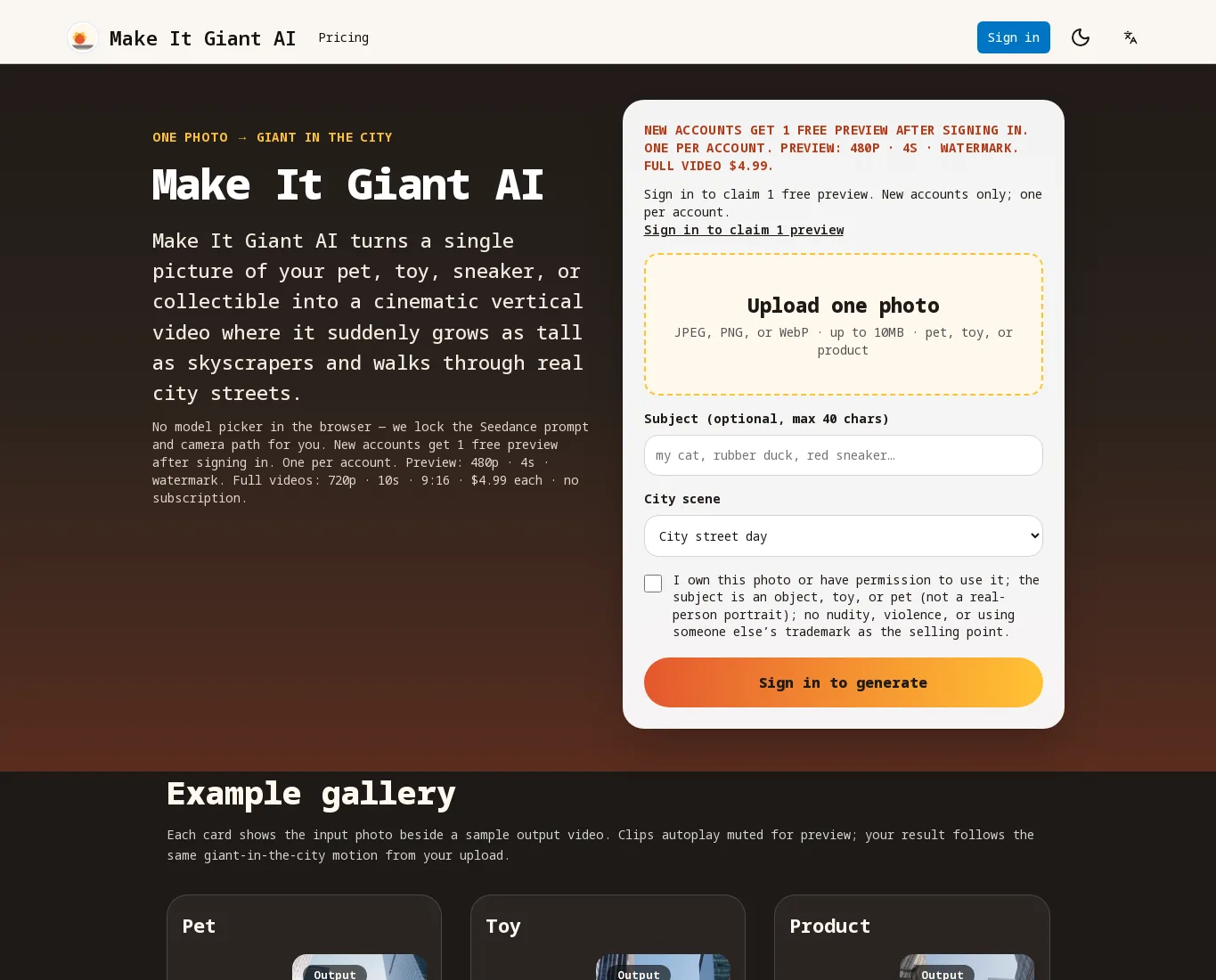
I opened the live giant pet tool while signed out. This interface screenshot shows the upload form before file selection, including the Subject field and city choices.
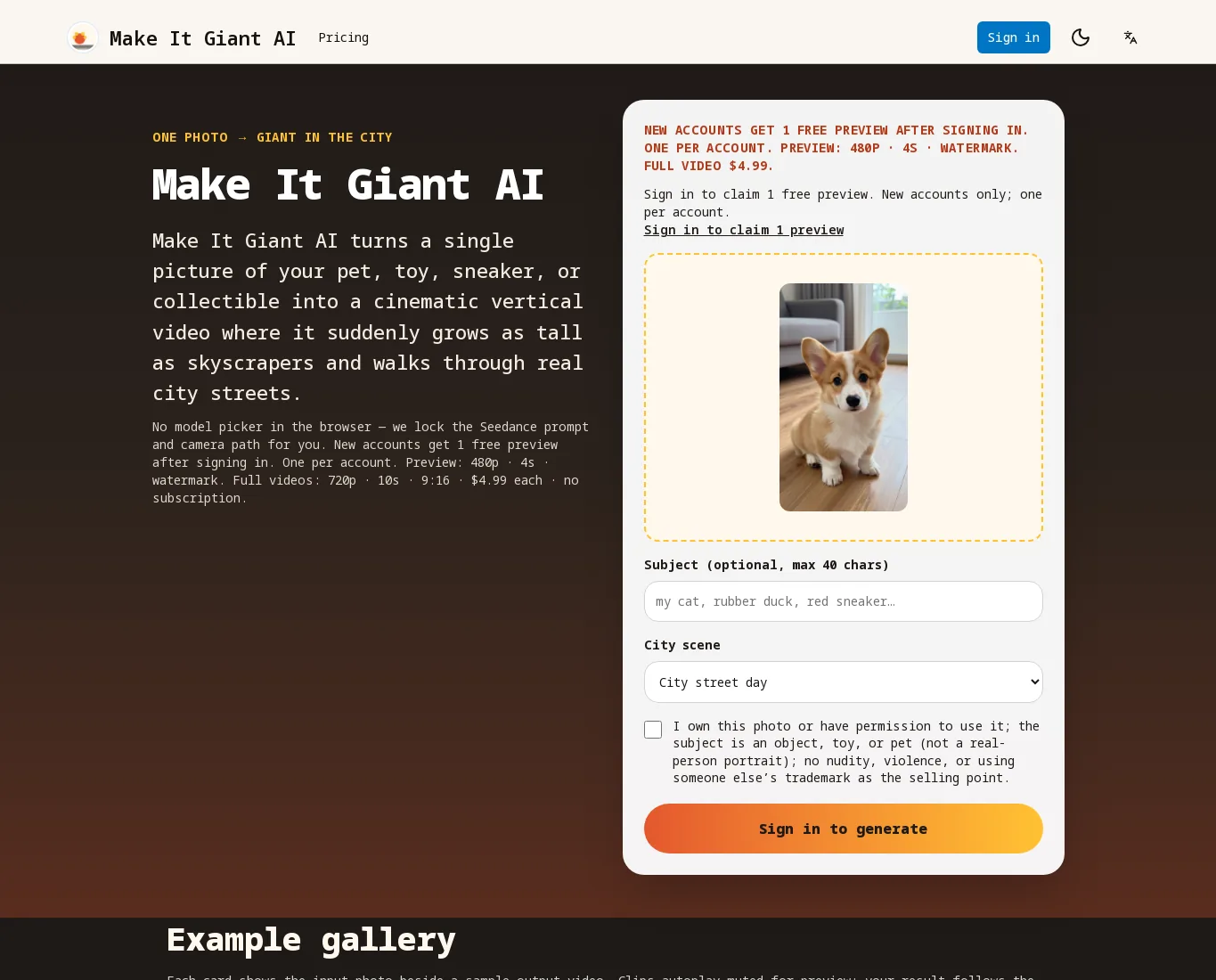
I selected the corgi input image already provided with the site’s example assets. The image appeared above the Subject and city fields, while the button still said “Sign in to generate.” This is a selected-image interface screenshot, not a giant-pet output or a result page. I stopped before sign-in and cannot report how this image would animate.
Preview first, then decide whether to buy
If my account were offered a preview, I would use it to judge the motion before buying credits.
The split, as the public pages describe it:
| Free preview | Paid | |
|---|---|---|
| Resolution | 480p | 720p |
| Length | 4 seconds | 10 seconds |
| Aspect | not specified separately on the public pages | 9:16 vertical |
| Watermark | yes | no |
| Format | plays in browser | MP4 download |
The public pages list different lengths and resolutions for preview and paid output. I would not assume buying credits turns a preview into the same clip without its watermark: I did not test that transition or whether a later generation would match the preview.
The create form is the same place you start either way.
What $4.99 actually buys
One number to remember: $4.99 for one giant video. That's a one-time purchase of 10 credits, and 10 credits equal one 10-second, 720p vertical (9:16) MP4 with no watermark. No subscription — the pricing page is explicit that it's a one-time purchase, so there's nothing recurring to cancel.
Two more things the public pricing copy says:
- Commercial use is OK when you own the source photo. If you're making this for a shop or a client, the rights question starts with your photo, not the video.
- Unused packs may qualify for a refund within 7 days if no credits were spent.
Those are the listed specs as of 11 November 2026 (Asia/Shanghai), taken from the public pricing page — recheck current pricing before paying, since specs and prices can change. If you want the full mechanics of credits, there's a separate how credits work guide.
If the result is not usable
Say the preview comes out wrong, or a paid generation disappoints. There's a sensible order to work through it.
First, go back to the source photo. A clipped-off paw, a blurry face area, or a pet half-lost in the background are input problems, and the fix is a better photo, not a repeat of the same one.
Second, if a paid job actually fails — as opposed to producing something you simply don't love — the homepage says credits refund automatically. You shouldn't need to chase a failed generation's credits back by hand; that's the public wording, and I'd recheck it on the live page if it mattered to a purchase I'd just made.
Third, for payment issues — money spent, credits not showing — current pricing covers the refund terms for unused packs within 7 days when no credits were spent, and the contact page is the place to ask about a payment that didn't post credits. I can't tell you what support will answer, because we didn't run a support case this round, so I won't pretend to.
Frequently asked questions
What photo do I need for a giant pet AI video?
One photo of your pet, in JPEG, PNG, or WebP, up to 10MB. Full body and sharp is better than partial and blurry, and the outline should be separable from the background. You need to own the photo or have permission, and it should be a pet — not a real-person portrait, which the permission wording excludes.
Does Make It Giant AI require a written prompt?
No. There's an optional Subject field of up to 40 characters, but no prompt box and no model picker in the browser. You upload a photo, pick one of four city scenes (City street day, Night city neon, Beach town, or Snowy city), and the site locks the giant-in-the-city motion and camera path for you.
What is included in the free preview?
Per the homepage, new accounts get one free 480p, 4-second, watermarked preview that plays in browser — eligibility depends on the account, and we didn't verify the offer this round. The preview is for judging motion and fit. Paid output is listed separately at 10 seconds and 720p; I did not test the transition from preview to paid output.
What does $4.99 buy?
A one-time purchase of 10 credits, which equals one 10-second, 720p vertical (9:16) MP4 with no watermark. It's not a subscription, commercial use is OK when you own the source photo, and unused packs may qualify for a refund within 7 days if no credits were spent. These are the specs listed on 11 November 2026 (Asia/Shanghai) — recheck the live pricing page before paying.
Did you test this article by generating a video?
No. I opened the live uploader and selected its existing corgi sample input in Chromium on 11 November 2026 (Asia/Shanghai). The photo appeared in the form, which still required sign-in to generate. I did not sign in, generate, or pay. These are interface screenshots; the video specs come from public page copy.
Open the Make It Giant AI uploader to check your photo and any preview offer for your account. Review current pricing before buying credits.
Share